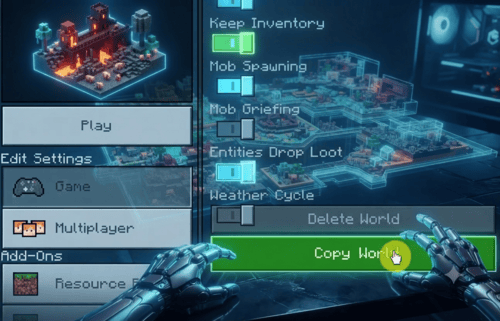
Best Practices for Reliable Minecraft Backups
Learning how to back up Minecraft worlds means knowing where your save files live and how to copy them safely before a crash a bad update or an accidental deletion wipes out your progress.. This guide walks through backing up worlds in Java Edition Bedrock Edition Realms and multiplayer servers plus how to restore a backup when you need it.
Quick Answer
To back up a Minecraft world quickly:
- Close Minecraft completely.
- Open your saves folder (%appdata%\.minecraft\saves on Java or the Bedrock equivalent below).
- Copy the folder for the world you want to protect.
- Paste it onto an external drive a different partition or a cloud storage app.
- To restore later copy that folder back into the saves directory and relaunch the game.
What This Guide Covers
- Why backups matter
- Where Minecraft stores your save files
- Using the built in backup tool
- Manually copying the world folder
- Backing up a multiplayer server
- Cloud backup options
- Best practices
- Restoring a backup
- Frequently asked questions
Why Backing Up Your Minecraft World Matters
Every world in Minecraft exists as a set of local files sitting on your device. Mojang does not automatically protect these files from hardware failure corrupted saves or a mod that breaks compatibility. Install an unstable modpack or hit a bad crash and months of work including redstone builds villager trading halls and terraformed landscapes can vanish in seconds.
A reliable backup routine gives you a way to:
- Restore a world if a save file becomes corrupted
- Roll back after a risky update or mod installation
- Move a world to a new PC or share it with friends
- Preserve a snapshot of your progress for nostalgia or documentation
Where Minecraft Stores Your World Save Files
Before backing anything up locate where your save data actually lives.
Java Edition (Windows): open File Explorer, type %appdata%\.minecraft\saves into the address bar and press enter. Each folder inside represents one world save.
Java Edition (macOS): use Finder’s “Go to Folder” option and enter ~/Library/Application Support/minecraft/saves.
Java Edition (Linux): saves are typically found in ~/.minecraft/saves.
Bedrock Edition (Windows): go to %localappdata%\Packages\Microsoft.MinecraftUWP_8wekyb3d8bbwe\LocalState\games\com.mojang\minecraftWorlds.
Bedrock Edition (mobile): direct folder access on modern Android and iOS versions is often restricted by the operating system. Instead of browsing app storage use Minecraft’s built in world export option from the pause menu which packages the world as a .mcworld file you can save or share.
On Windows remember that AppData is hidden by default. Turn on “Show hidden items” under File Explorer’s View tab if the folder does not appear.
Method 1: Manually Copying the World Folder
This is the most universal approach and it works for both Java and Bedrock while keeping you in full control.
- Close Minecraft completely. Copying files while the game is running risks producing a corrupted save.
- Navigate to your saves folder using the paths listed above.
- Right click the world folder you want to protect and choose Copy or use Ctrl+C on Windows and Linux, or Cmd+C on macOS.
- Paste the copy into a safe destination such as an external drive a separate partition or a dedicated backup folder.
- Rename the copy with a date for example MyWorld_backup_20260724 so you can track different versions over time.
To restore later copy the backup folder back into the saves directory and relaunch Minecraft. The world reappears in your singleplayer list automatically.
This is especially useful if you plan to test a Minecraft MOD APK build, since backups let you roll back safely if a mod breaks your world.
Method 2: Backing Up a Minecraft Server
Running a survival server for friends raises the stakes since many players’ progress depends on one shared set of files.
- Stop the server before copying files or use a plugin built for safe live backups.
- On control panels such as Multicraft or Pterodactyl look for a dedicated Backup option in the sidebar and trigger it manually.
- A complete server backup usually includes the world folder the world_nether folder the world_the_end folder, and player data covering inventory location and experience points.
- Schedule automatic backups through your host’s panel or a cron job so protection never depends on memory.
- For a lightweight self managed option the open source Python tool called minecraft backup can run on a schedule and compress your server’s world data into timestamped archives automatically.
If you have not set one up yet, our guide on how to make a Minecraft server covers the full setup before you worry about backups.
Method 3: Cloud Backups for Extra Protection
Local copies guard against in game corruption but they will not survive a stolen laptop or a failed drive. Cloud storage adds a second layer of protection.
- Sync your saves folder using the desktop apps for Google Drive Dropbox or OneDrive.
- Or manually upload a zipped copy of your world folder after each major session.
- Minecraft Realms already keeps your world stored on Mojang’s servers and maintains its own periodic backups but downloading a personal copy now and then is still worthwhile in case your subscription lapses or an issue occurs on their end.
- Server owners can automate uploads to cloud storage with tools like rclone right after each scheduled backup finishes.
PC players looking for the full desktop setup can also check our Minecraft for PC guide.
Best Practices for Reliable Minecraft Backups
- Follow the classic rule of three: keep three copies of your world stored on two different types of media with at least one copy kept offsite or in the cloud.
- Back up before any risky action including updating Minecraft installing new mods, or upgrading your PC.
- Automate wherever possible since manual backups are the ones most likely to be forgotten.
- Test your backups occasionally. A backup you have never restored is one you cannot fully trust.
- Keep several dated versions rather than one single copy since storage is cheap and corruption sometimes goes unnoticed for days.
- Before installing Fabric or Forge mods create a fresh backup first. Mod conflicts are one of the most common causes of a corrupted Minecraft world.
If your device is struggling with performance, switching to a Minecraft old version can also reduce the chance of save corruption on lower end hardware.
How to Restore a Backed Up Minecraft World
- Close Minecraft if it is currently open.
- Locate your backup whether it is a zip archive or a copied folder.
- Extract it first if it is zipped.
- Copy the extracted world folder into your saves directory (%appdata%\.minecraft\saves for Java or the equivalent Bedrock path).
- Launch Minecraft. The restored world will appear in your singleplayer or worlds menu.
Frequently Asked Questions
Conclusion
Backing up your Minecraft world does not have to be complicated. Whether you rely on the built in backup tool a simple manual copy or a fully automated cloud pipeline the goal stays the same: making sure a single crash update or mistake never costs you your world.Now that you know how to back up Minecraft worlds across every platform, you can play mod and update with total confidence
Ready to start fresh with a protected world? Grab the latest build from our Minecraft APK download page and back it up from day one.